GET STARTED
Let’s empowered to monetize in 15 mins

Setup Your Profile
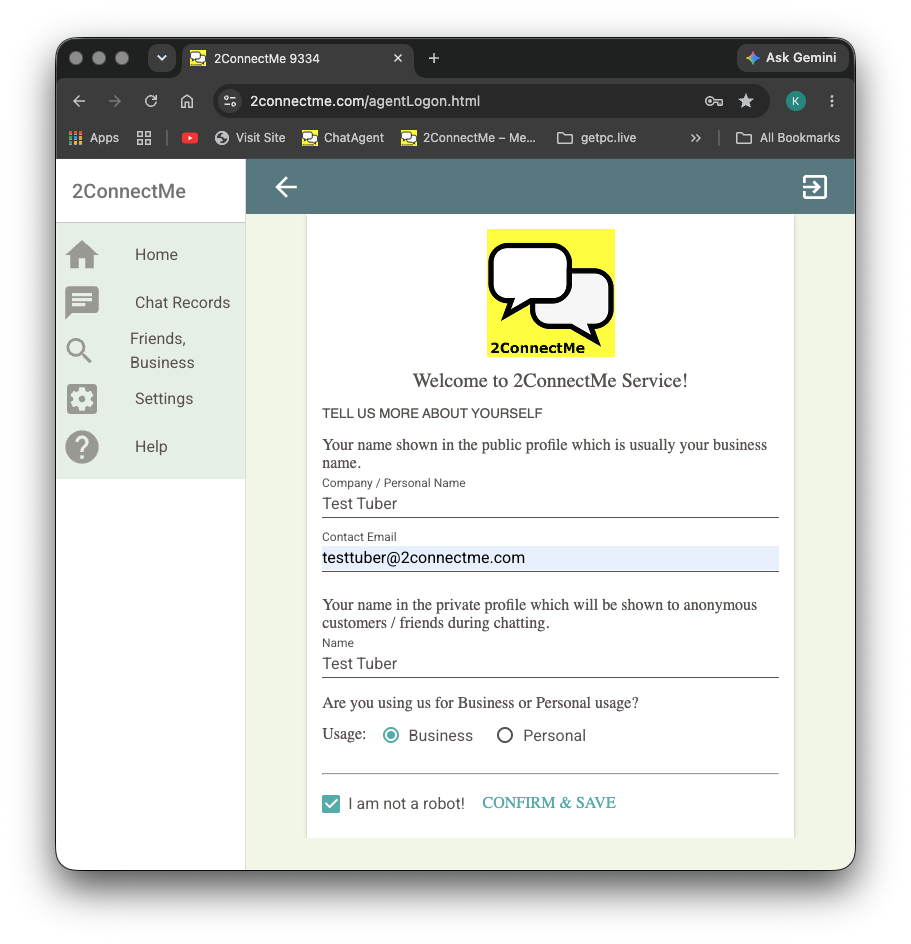
Define your public identity and custom channel username handle.
Configure your display identity preferences and username parameters.
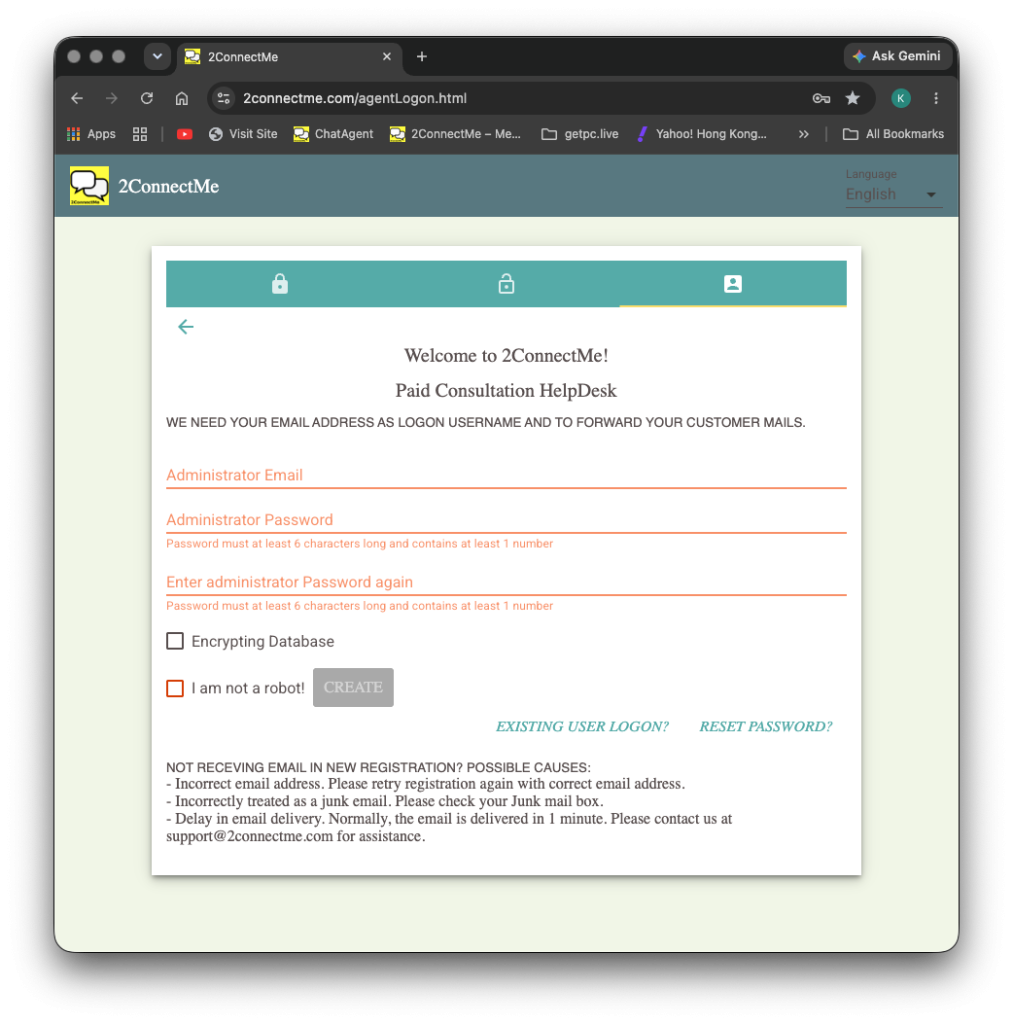
- Click the “Setup Profile & Claim Link” above to join 2ConnectMe.
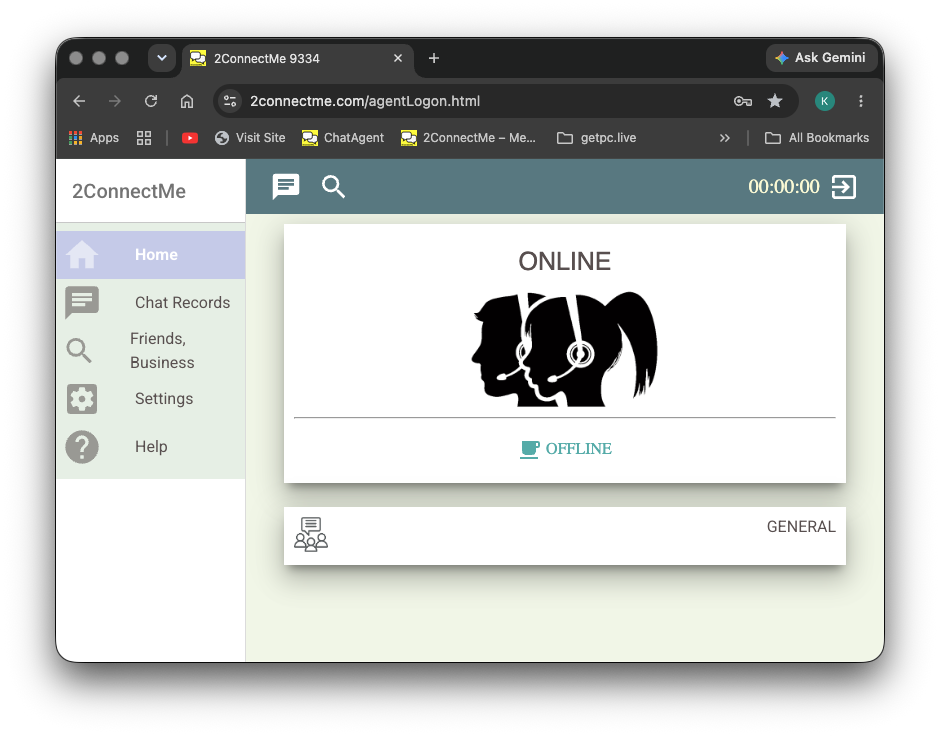
- Your dashboard setup will resemble the visual layout previews below:
Test Your First Video Chat
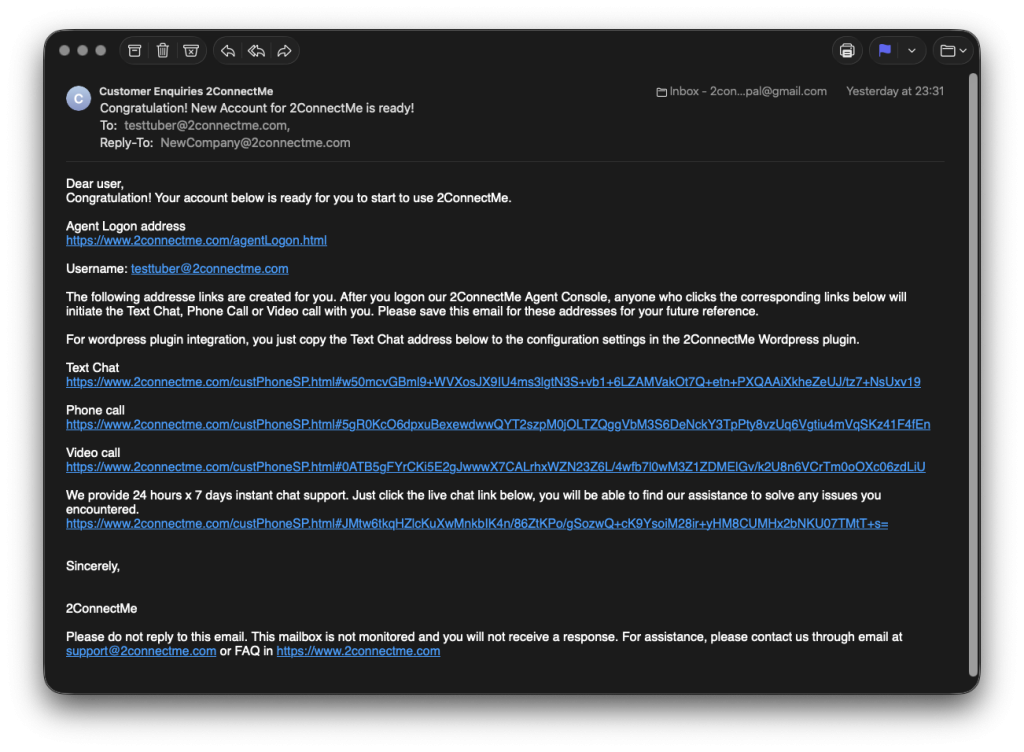
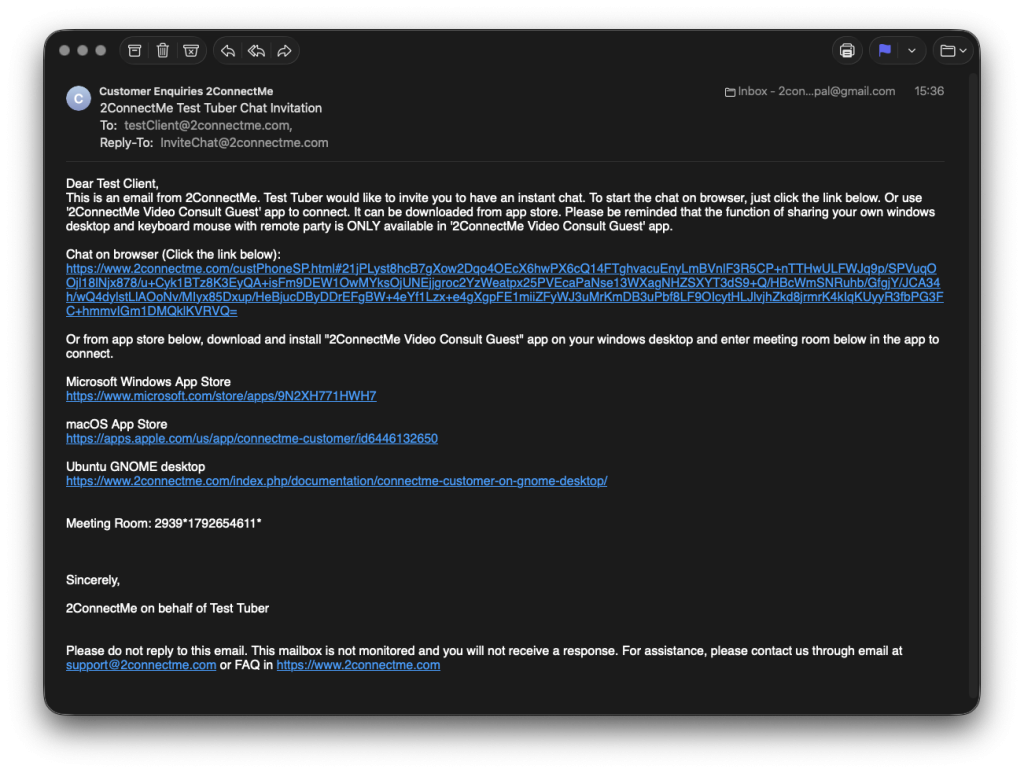
Test a normal live video link prior to setup pricing scheme. The links on the registration email are the LINKS you could put on the YouTube description, channel description or pinned comments for your fans to initiate chargable chats.
Launch Link Test.
- Check your administrative mailbox. We have automatically sent a secure, Ad-Hoc Private Chat Invitation token link to your registered email address.
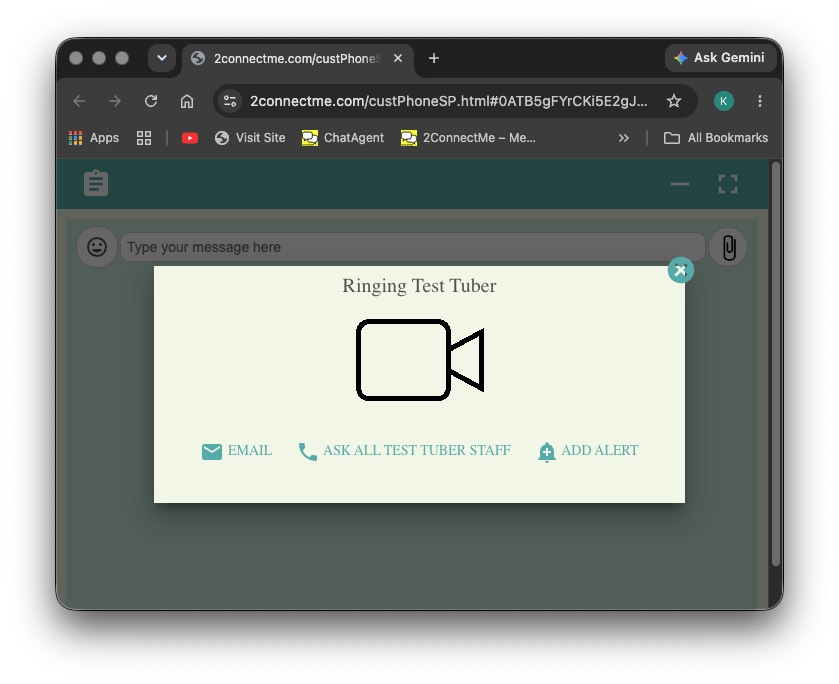
- Click that email invitation link for video chat to open a safe, isolated client chat window right inside your standard browser (no app downloads required).
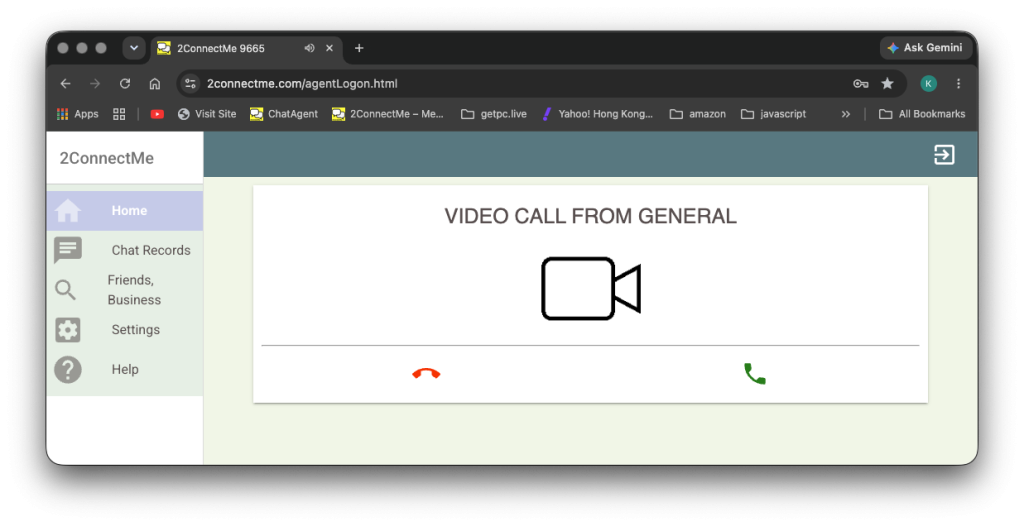
- Your agent answers an incoming video chat.
Setup Your Service Price
Set your service price with live per-minute pricing structure.
Configure Pricing
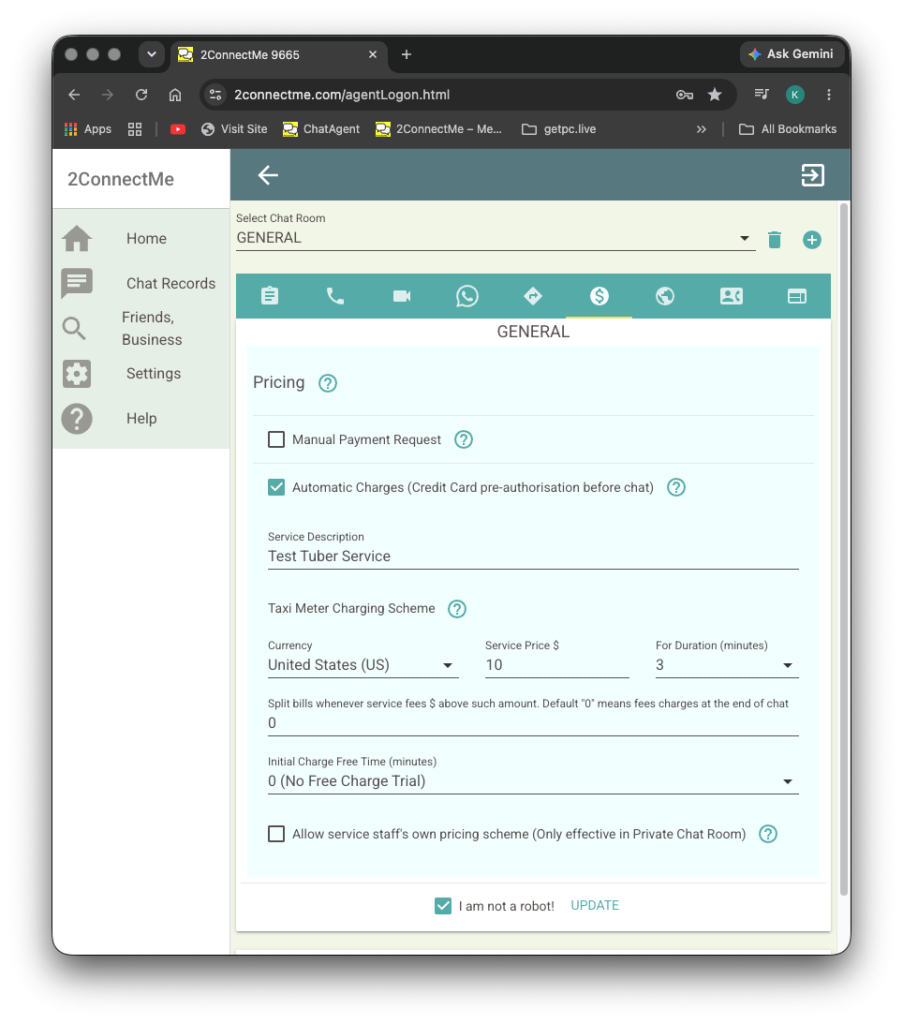
- Go to Settings -> Public Anonymous ChatRoom -> “Pricing Tab”.
- Enable “Automatic Charges” with service details and taxi meter charging scheme. Click “Update”.
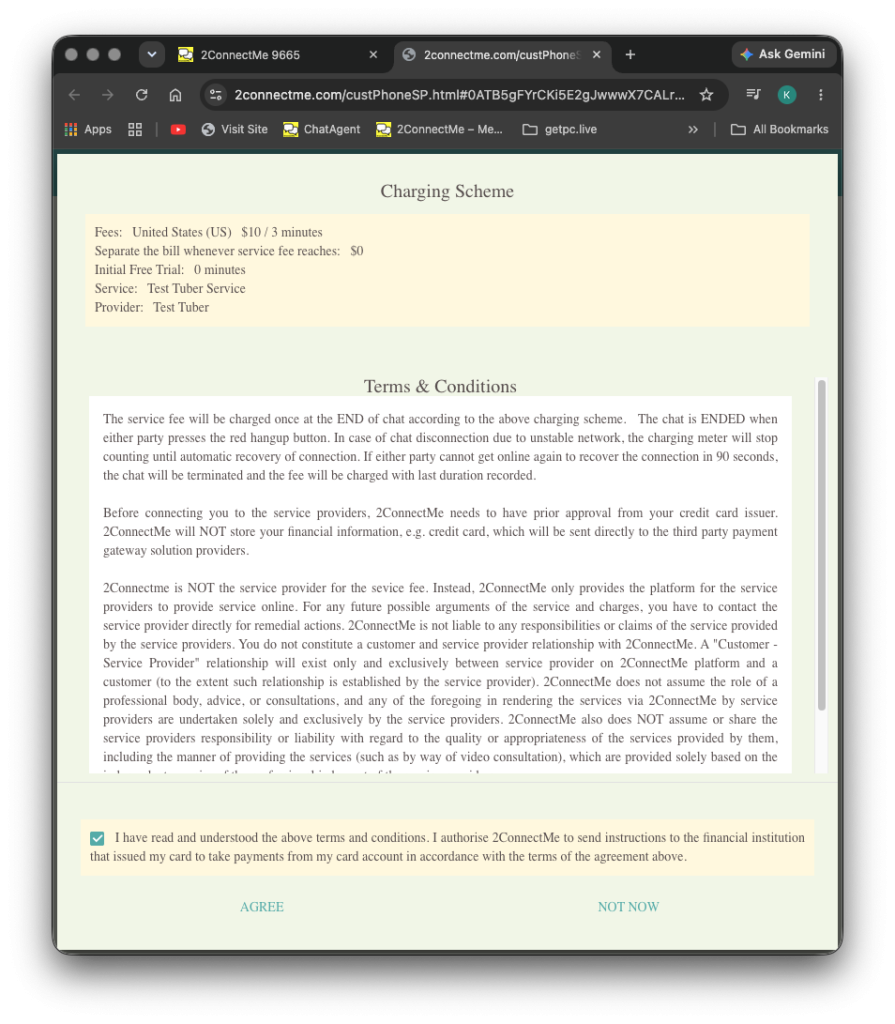
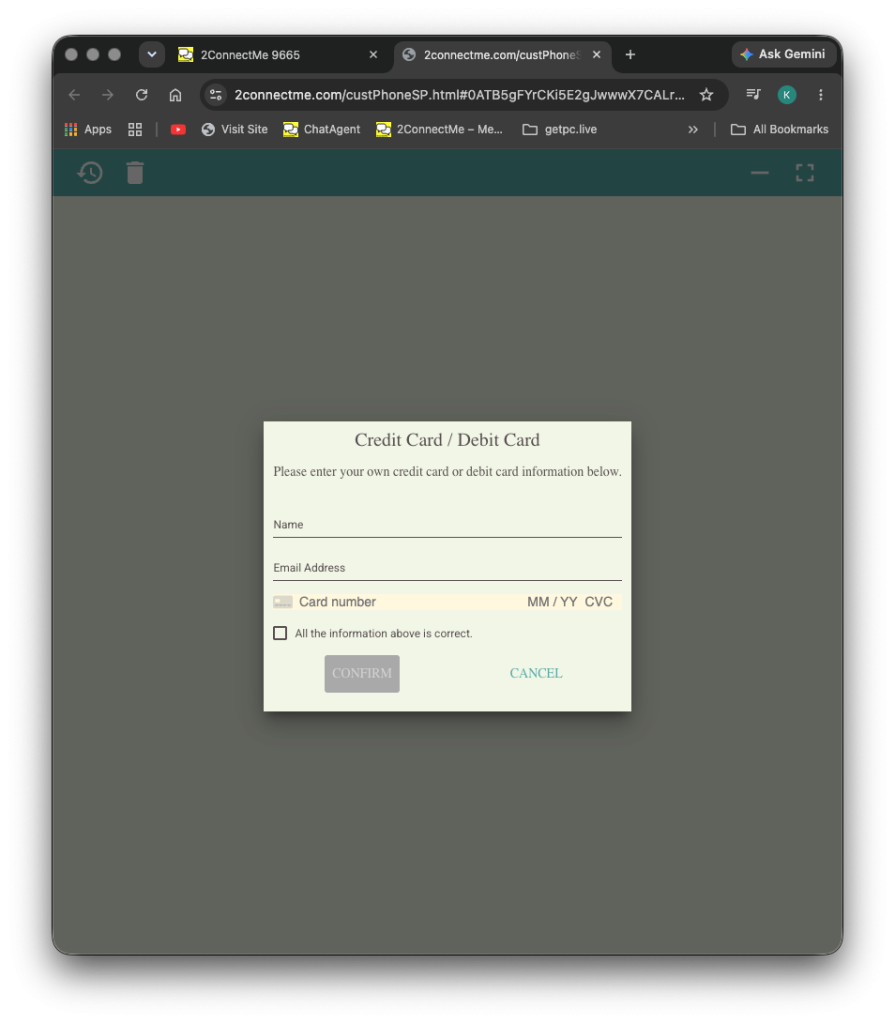
- Click the same test video chat link above and it will prompt client to have pre-authorisation credit card prior to connecting to service staff.
Link Your Stripe Account with 2ConnectMe
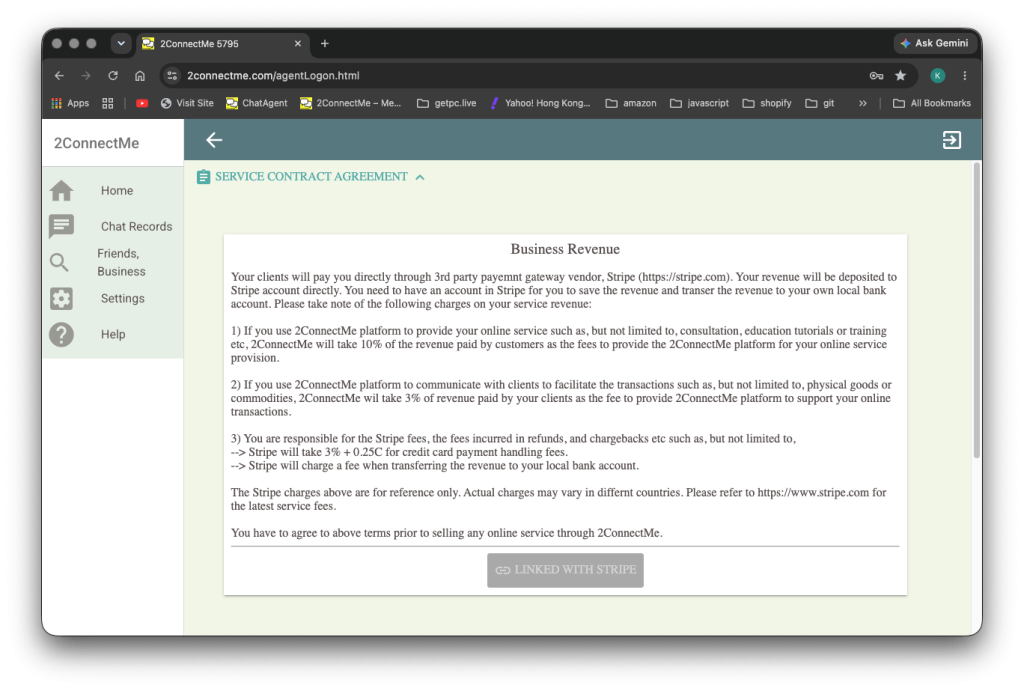
Protect your income. Authorize your secure stripe account integration with a single click. Your fans payment will instantly be deposited in real time, i.e. your 90% share directly into your stripe account when a call terminates.
Otherwise, we will pay you on a weekly basis, i.e. within 7 business days.
Connect Your Stripe
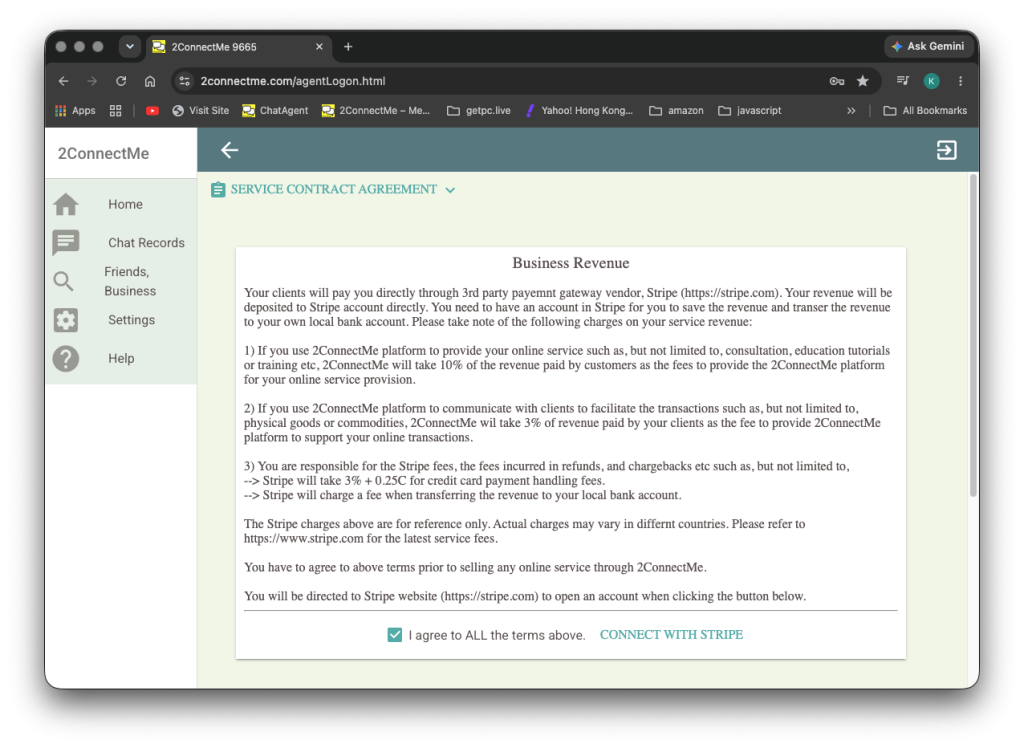
- Go To Settings -> Business Revenue
- Review and agree to the terms and Click “CONNECT WITH STRIPE”
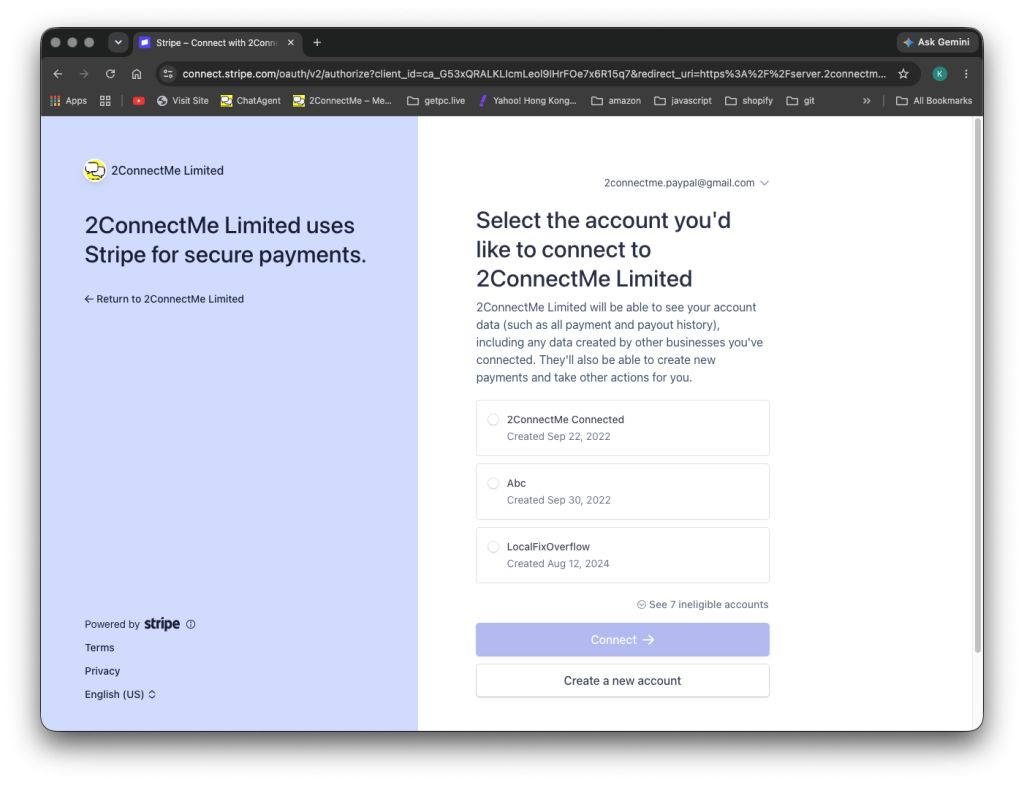
- Select any of your stripe account, if you have one, for your future receiving fans payment. Or create a new stripe account directly here.
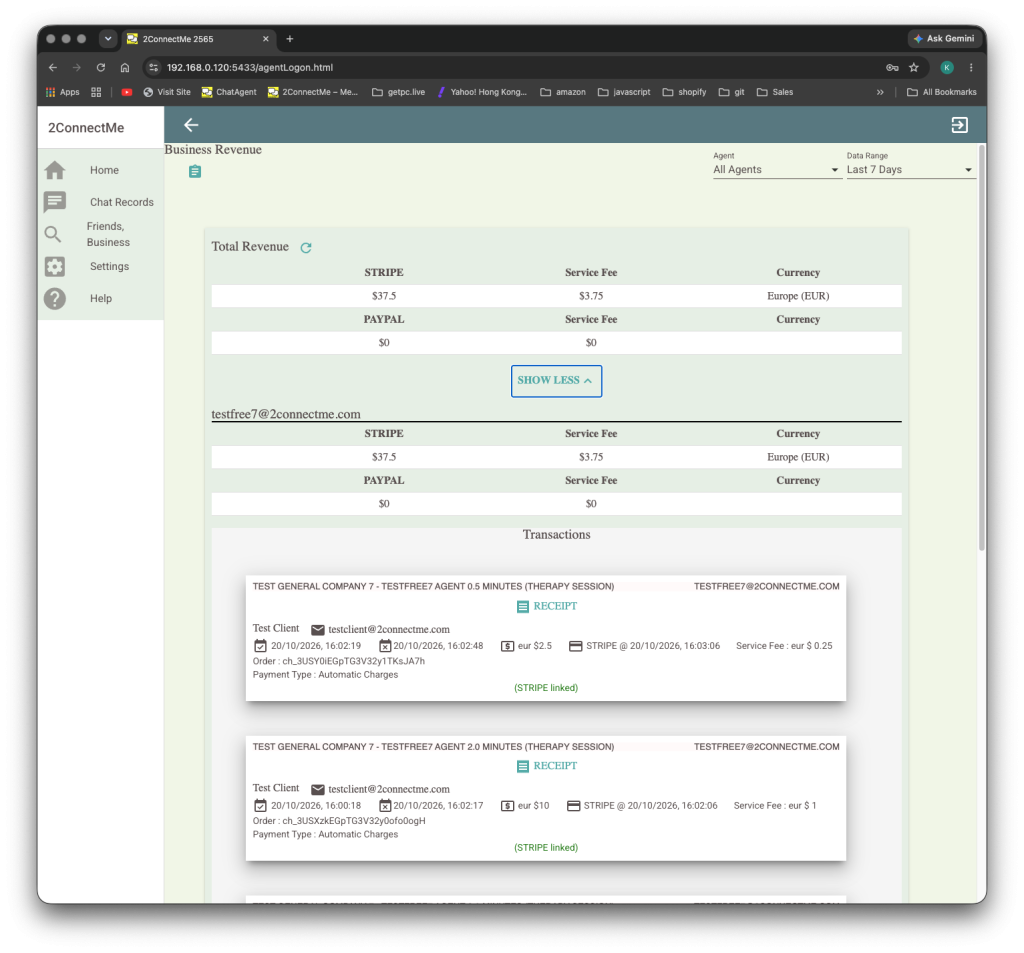
Your Revenue Summary
Track real-time processing balances, statement transcripts, and clear payouts.
Open Statements
Go to Settings -> Business Revenue
Chat with Ad-Hoc Pricing
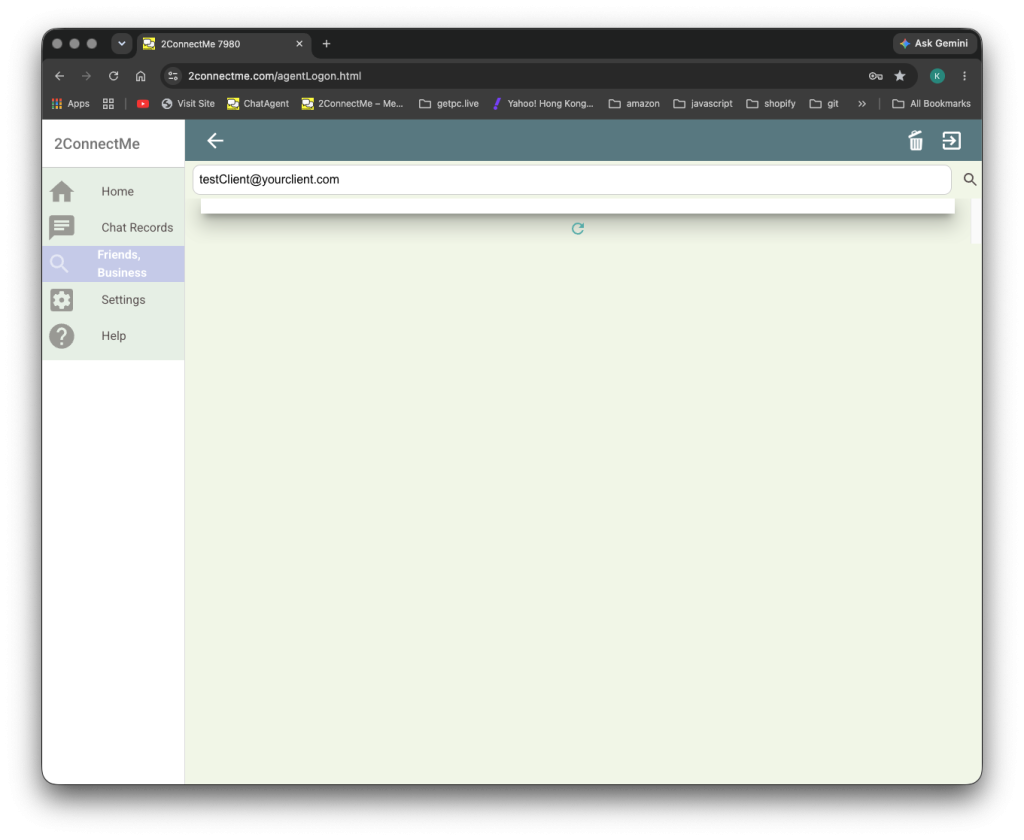
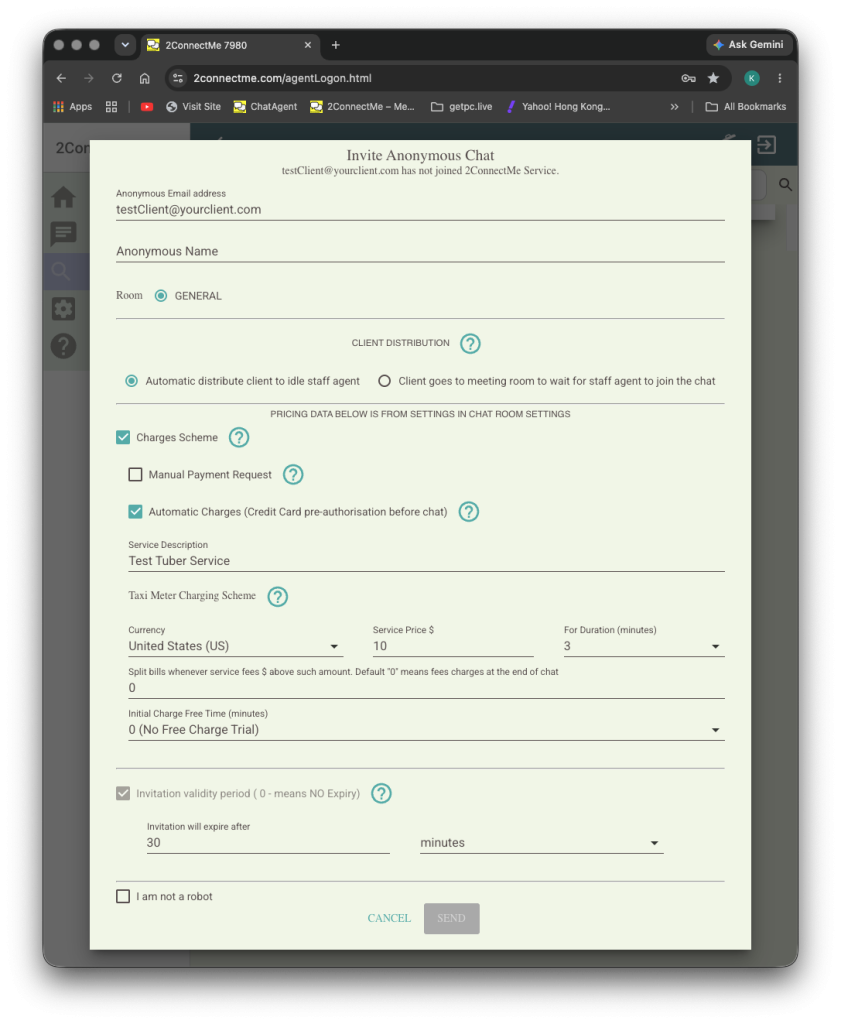
Standard room rates on chat room settings above don’t fit every client. Whether you need to charge a premium for an urgent issue or offer a discount to a friend, you can completely override your baseline fees on the fly. Simply customize your ad-hoc service pricing directly on the meeting request link on the “Friends / Business” and sending it out.
Learn more about ad-hoc pricing configuration
When generating a new invitation link, you can dynamically override your default per-minute rates or set a fixed consultation fee. The final billing counter will strictly follow these link-specific parameters, ensuring automated, accurate payouts without modifying your global chat room settings.
- Go to the “Friends / Business” -> Input the receipent email address
- Enter the new service price on the form and click SEND
Customize Your Priviate Profile & Chat Room Form
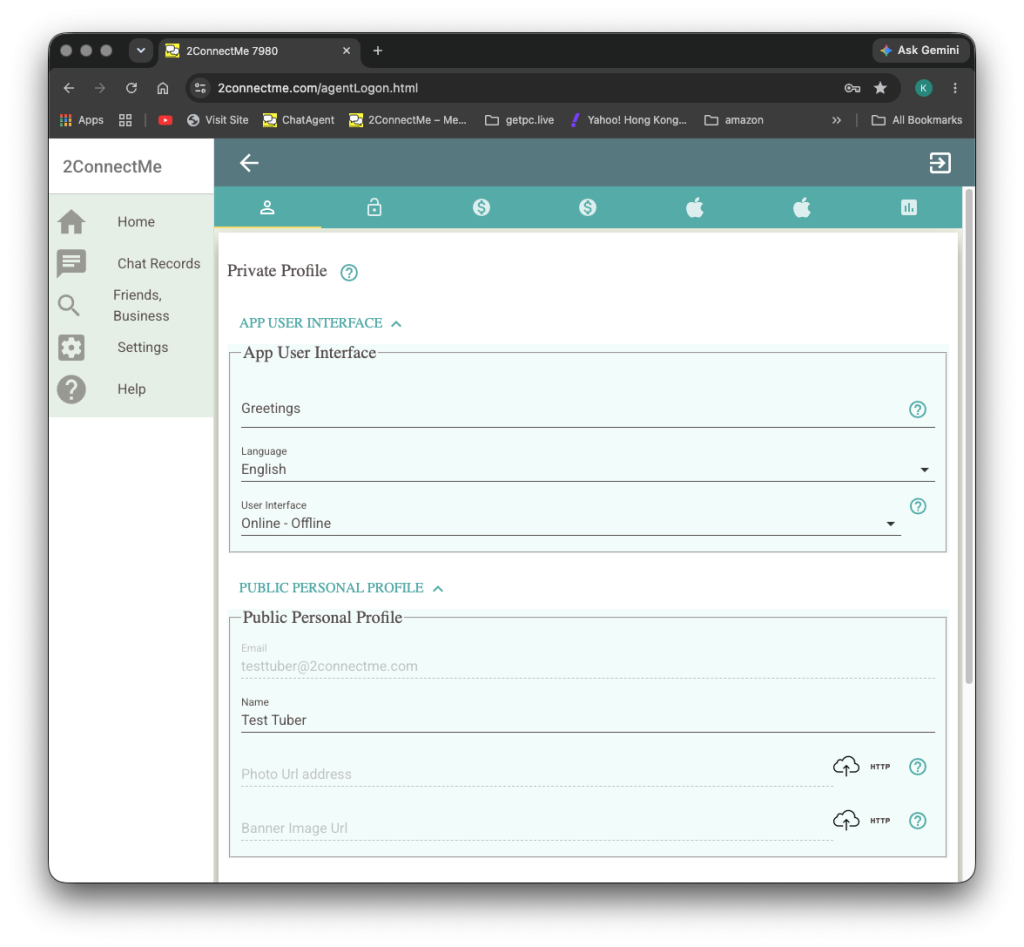
First impressions matter. In less than 2 minutes, you can tailor exactly how you appear to fans and clean up your intake process. Upload your professional photo to your private profile and configure a custom contact form layout so you capture only the critical details you need before a live session begins.
How to update your profile photo and information
Go to Settings -> Private Profile
How to update layout of chat room form
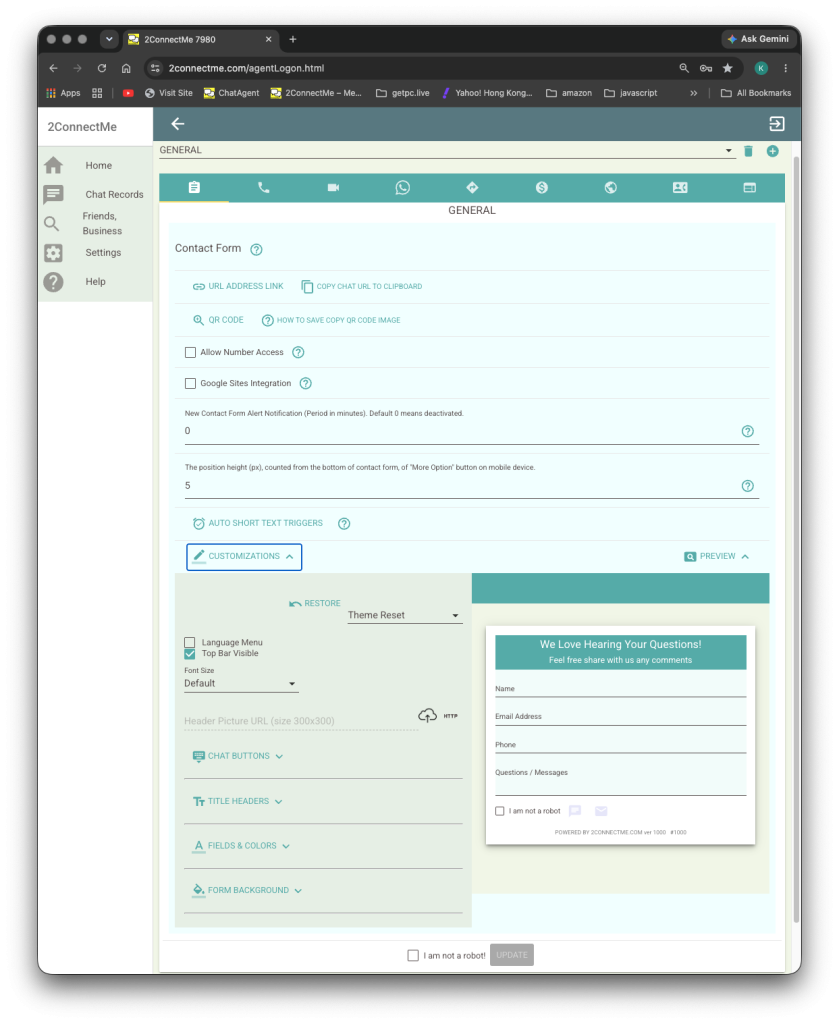
- Go to Settings -> Public Anonymous ChatRoom.
- Switch to the Contact Form Layout tab -> Customizatons / Preview
- Drag, drop, or toggle the required fields (like names, emails, or pre-chat descriptions) that fans must complete before entering your room.
- Hit Save to instantly apply the new design to your private chat room link.